

Version 7.4 and higher
When scenarios are defined and templates are created, everything needs to be ‘tied together’ with a service. Per service a maximum of three templates can be assigned to each scenario: one for emails, one for text messages and one for letters.
In addition, you can define for each scenario a sending condition per message type. For example, you can specify that a letter only needs to be sent when it is not possible to send an email, but text messages always need to be sent.
Linking templates to services
Linking templates to services can be done in several places in the application:
- In the ‘Masterdata’ section, when adding or editing a service.
- In the ‘Masterdata’ section, when adding or editing a service category.
- On the templates overview, with the action ‘Link’ when a template is selected.
- On the scenarios overview, with the action ‘Link’ when a scenario is selected.
Tip
When linking on the templates or scenarios overview pages, it is possible to link the templates for a specific scenario to multiple services or service categories at once.
Linking per service
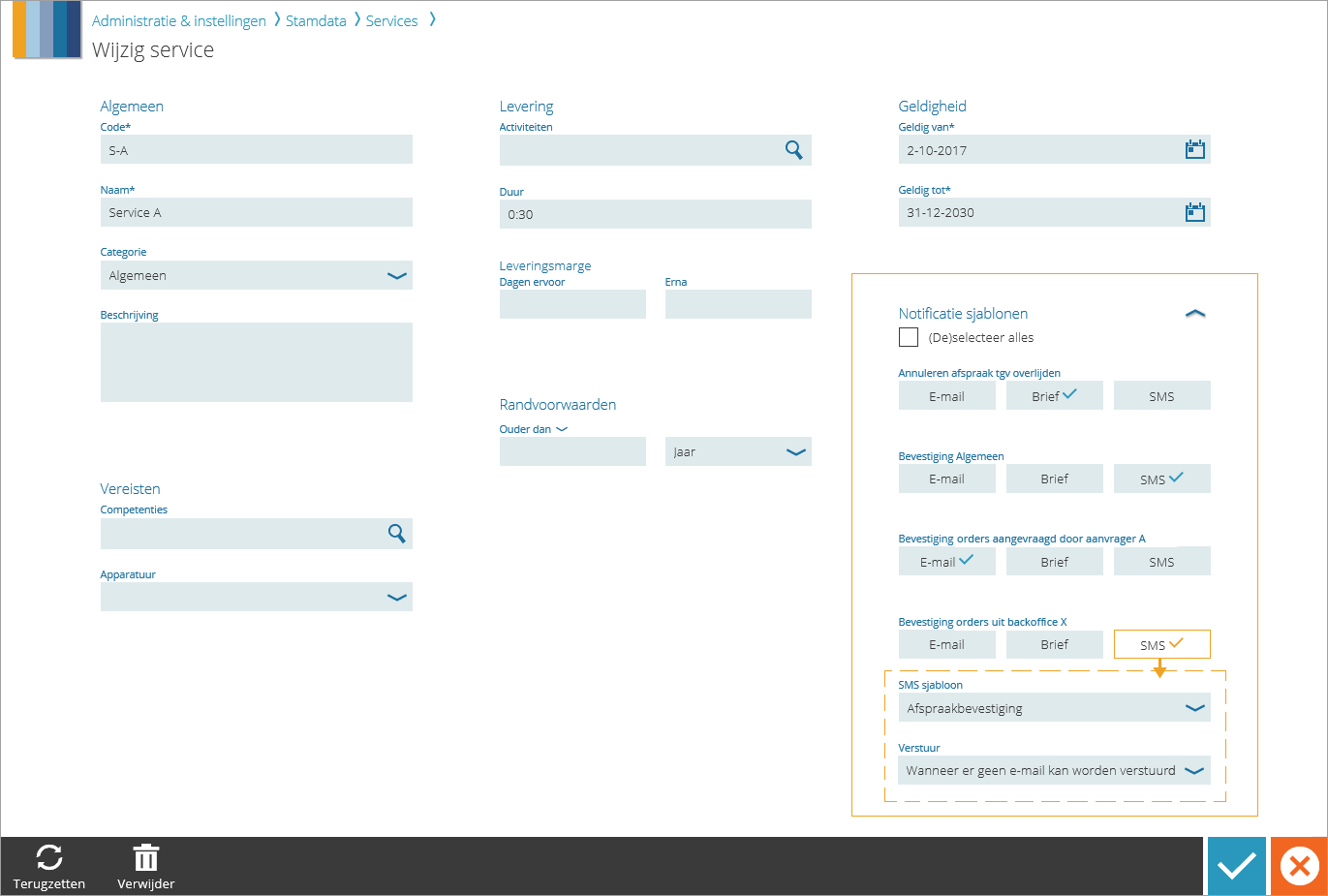
New services can be added or existing services can be edited in Administration & setup > Masterdata > Services. The section ‘Notification templates’ exists on both the page for adding a service and the page for editing a service. Here, per scenario, the templates can be chosen – one for each message type – that need to be used when the scenario is valid for this service. In addition, it is possible to enter the sending condition per message type.
When a  is shown behind the message type, it means that a template is already linked for that specific scenario and message type. Click on the little block to see (and if desired: edit) which template is used and what the sending condition is. Leave the template field empty to remove the link between the template and the service.
Linking per service category
Just like templates can be linked to individual services, they can be linked to a service category. This is efficient, because when a new service is added and grouped under the respective service category, the new service automatically receives the linked templates and sending conditions from the service category for each scenario.
Attention!
Assigning templates and sending conditions by means of the parent service category is just a onetime action. As soon as the service is saved, it does not look at the service category anymore. When the templates and/or sending conditions for a service category are changed on the ‘Edit service category’ page, the templates and sending conditions of the underlying individual services will not automatically change, too.
If you do want to do so, use the action ‘Link’ on either the templates overview or the scenarios overview, with the option ‘Overwrite any previously linked templates and sending conditions’ checked.
It is possible to reset the templates and sending conditions of an existing service back to the templates and sending conditions of the parent service category. To do so, go to the page ‘Edit service’ and select one or all message types in the section ‘Notification templates’ and click ‘Reset’ on the action bar.
Linking per scenario or template
Via this way it is possible to link one or multiple templates that belong to a certain scenario to multiple services at once.
Go to the templates overview and select a template, or go to the scenarios overview and select a scenario. Then click ‘Link’ on the action bar, to open the page ‘Link templates to services’, where the selected scenario or template will already be selected.
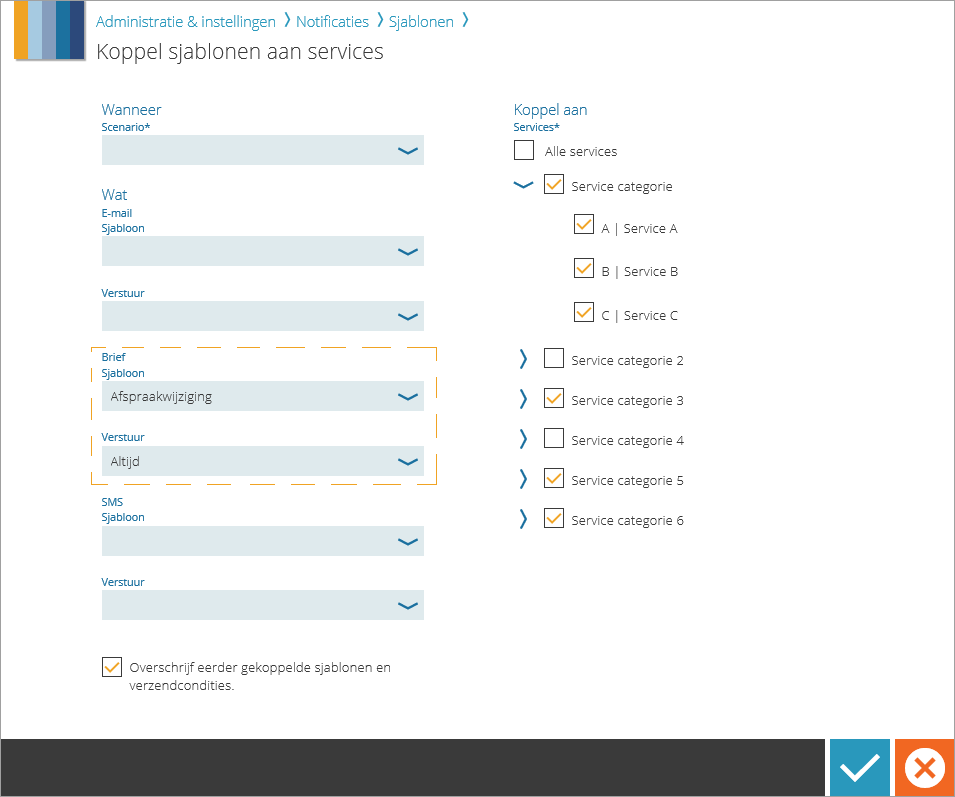
Select – if the field is not filled yet – a scenario for which templates need to be linked to services. Then choose one to three templates, one for each message type. Also choose a sending condition for each selected template.
Finally, select services and/or service categories which the templates need to be linked to. When all services of a service category are selected, the templates will also be linked to the service category.
Overwriting previously linked templates and sending conditions
When this option is selected, all templates and sending conditions that are already linked to the selected service (category) for this scenario, will be overwritten with the templates and sending conditions that are chosen on this page. This way, previously linked templates and/or sending conditions can be replaced for multiple services at once.
Attention!
When on this page no template is chosen for a specific message type, and there was already a template for this scenario and message type for the selected service, the existing template will not be overwritten. This way it is possible to, for example, only change the email template for a certain scenario for a few services, while the previously linked templates for the other messages types remain unchanged.
Because of this, it is not possible to delete a link between multiple services and their templates. Deleting templates can be done for individual services on the ‘Edit service’ page.
Tip
If a template needs to be replaced for all services which it is linked to, then use the option ‘Replace’ on the templates overview. The sending conditions will remain in that case unchanged.
Sending conditions
Sending conditions can be used to define which message types need to be generated per scenario. The different sending conditions are:
- Send always
- Send only when a letter cannot be sent
- Send only when an email cannot be sent
- Send only when a text message cannot be sent
Example
The configuration is: For a new appointment an email always needs to be sent as a confirmation, and a letter only needs to be sent when an email cannot be sent. When a new appointment is planned, an email will be generated, provided that there is a notification email address known for the appointment. If there is no known email address, a letter will be generated instead of an email.
It is also possible to set the sending condition for multiple message types to ‘Always’ within one scenario. In that case, always multiple messages will be generated.