

Version 7.4 and higher
On the page ‘Administration & setup’ the sessions dashboard can be opened with the sessions tile. The sessions dashboard shows a number of ‘counters’ which say something about the sessions. Each of the tiles links to the sessions overview, each tile showing the sessions overview in a differently filtered state. Next to the tiles a list is shown of service-location-combinations that exceed the max. allowed access time.
The counters and list of exceeded access times support session management. It provides an overview of the number of ‘problems’ which need to be resolved (for example: There are three sessions that have a problem with the location). It also provides insight about the number of sessions: Are there enough or maybe too many or too few? This knowledge helps to decide if any action needs to be taken.
Required
- User right 21: ‘View session information’
- Setting 28: ‘Occupancy rate thresholds for sessions’
Counters
The sessions dashboard shows several tiles with counters. Most counters are about the validation status of the sessions. Please refer to Session error messages and validation status to read how to keep the validation status of sessions up-to-date.
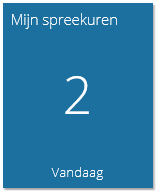
My sessions
The first tile (dark blue) shows the number of sessions that are planned on the current day for the logged in user. Click on this tile to open the page ‘Session planning board’, where you can see which appointments you need to carry out today.
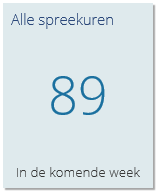
All sessions
The tile ‘All sessions’ shows the number of valid sessions in the upcoming week. Click on this tile to open the sessions overview with the default filter: all sessions of today and next six days.
Warnings
The three tiles with device, location and employee warnings show the number of warnings that exist for all sessions in the next 4 weeks. The count is done per session. This means that if a session has multiple warnings for devices, this will be counted as 1 device warning.
Click on the tile to open the sessions overview in the related filtered state. For example, click on the tile ‘Location warnings’ to open the sessions overview showing only sessions with location warnings.

Invalid sessions
The tile ‘Invalid sessions’ shows the number of sessions that are invalid in the next 4 weeks. Click on this tile to open the sessions overview showing only sessions of the next four weeks which are invalid.
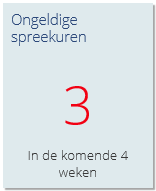
Sessions with invalid appointments
The tile ‘Sessions with invalid appointments’ shows the number of sessions which have invalid appointments in the next four weeks. Click on this tile to open the sessions overview showing only sessions with invalid appointments.

Attention!
Only problems related to the setup of the session are taken into account here. These problems can be resolved by editing the details of the sessions. Please refer to Session error messages and validation status.
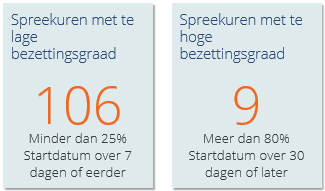
Sessions with a too low or too high occupancy rate
The tiles ‘Too low occupancy rate’ and ‘Too high occupancy rate’ show the number of sessions which have an occupancy rate that lies below or above a certain threshold value. These threshold values are defined in setting 28.
The counter ‘too low occupancy rate’ concerns all sessions between now and a certain number of days in the future (defined in setting 28). If a session has a low occupancy rate shortly before its start date, chances are high that the session will never be completely filled with appointments. To prevent this from happening you can decide to shorten or cancel the session. Click on this tile to open the sessions overview showing only sessions in the mentioned period which have a too low occupancy rate.
The counter ‘too high occupancy rate’ concerns all sessions that take place from a certain number of days in the future (defined in setting 28) until 180 days in the future. If a session already has a high occupancy rate long before it starts, the chance is high that the access times for its services become too long. To prevent that from happening the existing sessions can be made longer or extra sessions can be created. Click on this tile to open the sessions overview showing only sessions in the mentioned period which have a too high occupancy rate.
Create your own counter Version 7.5 and higher
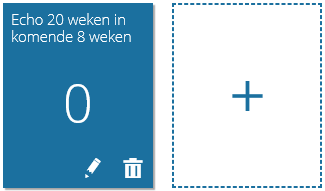
It is possible to create multiple personal counters. These counters are personal, only visible to you. Click on a personal counter to open the sessions overview in a filtered state that matches the counter.
Click on the big plus-button to create a new counter. Several search criteria can be filled in on the ‘Define search criteria’ page. These search criteria are the same as the ones from the search panel on the sessions overview. Enter the desired criteria (it is possible to leave some of the fields empty) and enter a name of max. 50 characters. This name is shown on the tile. Click on  to save the counter. You can create as many counters as you wish. Click on
  on a specific counter to edit it, or click on
  to delete it.
Exceeded access times Version 7.5 and higher
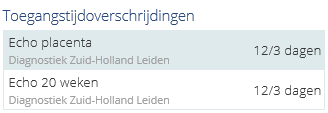
At the right side of the sessions dashboard page a list is shown of ‘exceeded access times’. (Refer to Access time for an explanation of the therm.) This list shows the name and service of the location, together with the current access time (on the left of the slash) and the max. allowed access time (on the right of the slash).
Click on one of the exceeded access times to open the sessions overview, filtered with the respective service and location.
Attention!
The list only shows service-location-combinations which are planned in sessions. If for a certain service no sessions are planned at all on a certain location (or only sessions of type ‘Walk-in’), the access time for this service-location-combination will not be shown in the list.