

Version 7.2 and higher for clients Version 7.4 and higher for locations
When a contact person is selected on the contact persons overview, the ‘Pin’ button appears on the action bar with which this contact person can be ‘pinned’. This means that the details of this particular contact person will be visible on the dashboard of the selected client or location.
Required
- User right 12.1: ‘Allow editing of location information’, for location contact persons
- User right 6.10: ‘Contact persons: editing’, for client contact persons
Pinning another contact person
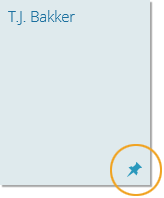 The very first contact person that’s added for a particular client or location – manually or via an import – will be pinned by default. By pinning another contact person on the contact persons overview, the pin is automatically removed from the currently pinned contact person. The pinned contact person can be identified by the
  icon on the tile.
From version 7.7.1 Since it isn’t possibe to ‘pin’ contact persons when importing them, it is also possible to pin contact persons in Serviceware Resources when only imported contact persons are known.
Attention!
The ‘pin’ on a contact personal is not personal. This means that the pinned contact person appears on the dashboard of the selected client or location for all users and not just for you.