

Version 7.6 and higher
Employees can be planned on sessions from the employee picker. It is also possible to already plan employees during the set up of a session (see Add session), but this functionality is more advanced on the session planning board.
Required
- User right 22.3: ‘Plan employees on session planning board’
The employee picker
The employee picker is located in the lower left-hand corner of the session planning board. The picker can be folded in and out by means of the arrow at the top left. Initially, the employee picker is ’empty’. Only when a session is selected employees are shown in the picker. These employees meet the requirements of the selected session(s). For example, they have the right competences and they have a work schedule during the session. The employees in the picker are shown with their name and contract number. The competences belonging to the contract and the team to which the contract relates are also shown.
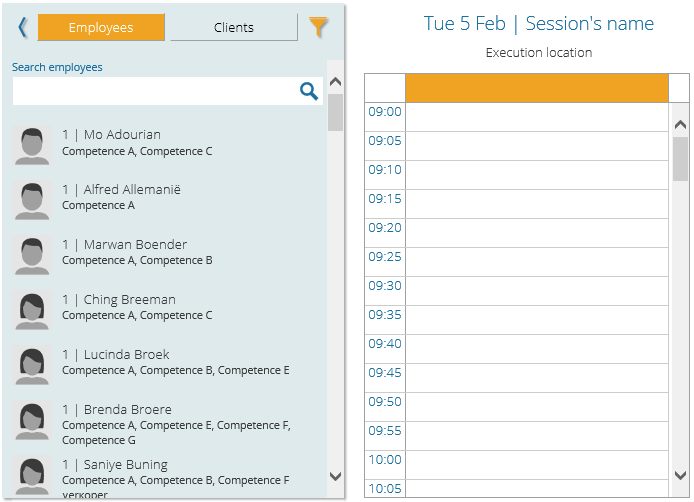
Searching for an employee
Search in the scope of the planning board
You can search for an employee if no sessions have been selected yet. In this case, the search is performed within all valid employee-contracts that have been linked to the current planning board (during the planning board set up). You can search by employee name, contract number, competence or team.
Search in the list of suitable employees
As soon as a list of suitable employees for the selected session is shown, you can search for a specific employee within this list. It is possible to search by employee name, contract number, competence or team. The picker is immediately filtered when the search is typed into the search field. Clear the field to retrieve the full list of employees.
Filter options
Click to display all filter options that apply to the employee picker.
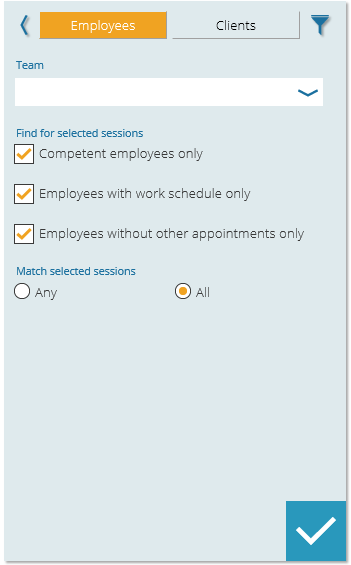
- Team. Search for teams by name or code and select one or more teams from the suggestion list that appears. Only employee-contracts that are linked to one of the selected teams will be shown in the picker. Only teams that have been linked to this planning board (in the planning board setup) can be found.
- Competent employees only. This option is checked by default. If this option is checked and competence A is required for the selected session, only employees who have at least competence A will be shown in the picker. If this option is unchecked, employees without competence A will also be shown in the picker.
- Employees with work schedule only. This option is checked by default. If this option is checked, only employees who have a schedule of type ‘work’ or ‘on-call’ for the entire duration of the session will be shown in the picker. If this option is unchecked, employees without a work or on-call schedule are also shown in the picker.
- Employees without other appointments only. This option is checked by default. If this option is checked, only employees who do not have other appointments in their calendar during the entire duration of the session will be shown. If this option is unchecked, employees who do have other appointments during the selected session will also be shown.
- Match any/all. From version 7.9 onwards, it is possible to define a preference for when planning employee(s) on multiple sessions. By choosing ‘All’, all displayed employees in the picker will be suitable for all of the selected sessions. By choosing ‘Any’, each of the shown employees will be suitable for at least one of the selected sessions, and not necessarily for all.
Apply the filters with  .
.
Attention!
Note that it is possible to plan an employee that is not competent and/or not available during a session. The session will be show with an orange warning in such case. This warning is visible in the session picker at the top, and when the session is opened in the bottom part of the planning board.
Planning employees
Adding employees to a single session
In the top part, select the session on which you want to plan one or multiple employees. Then select the session at the bottom of the screen. The employee picker is filtered automatically and will only show those employees that are suited for the selected session. Next, there are two possibilities to plan an employee:
- Planning with the ‘Plan’ action: select the desired employee by selecting it in the employee picker. The option ‘Plan’ becomes available on the actionbar. Click it to plan the employee on the session. The employee now disappears from the employee picker (for this specific session).
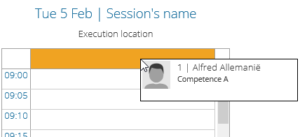 Planning with drag&drop: click on the desired employee in the employee picker and hold down your mouse. Now, drag the employee to the session on which you want to plan him/her. Release the employee on the header of the session. The employee now disappears from the employee picker (for this specific session).
Attention!
After planning a specific employee, it is checked whether the employee meets all the criteria of the session. In case of a possible violation, the session will change colour. Please see Session planning board, paragraph ‘Display of session validation statuses’.
Adding employees to multiple sessions
One or multiple employees (multiple possible from version 7.9) can also be planned on several sessions at the same time. For example, a specific employee must be planned every day for a specific type of session. To do this, select all sessions in the bottom part of the planning board and select one or more employees in the employee picker. Use the ‘Plan’ action in the actionbar to plan the employee(s) on all of the selected sessions.
Tip
In the filter of the employee picker, it is possible (from version 7.9) to let the employee(s) meet the requirements of ‘All’ selected sessions or ‘Any’ of the selected sessions. Depending on the choice made, either all employees shown in picker are suited for planning on all of the selected sessions, or each of the employees shown will be suited for at least one of the selected sessions.
Removing employees from a session
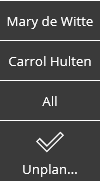
As soon as you select a session on which an employee is planned, the ‘Unplan’ action will appear on the actionbar. By clicking it, the employee will be removed from the session and is placed back in the employee picker. If several employees are planned on a session, you can choose to remove a specific employee or to remove ‘All’ from the submenu under the ‘Unplan’ action.
As with adding an employee to a session, an employee can also be removed from a session by drag&drop. Click on the employee name in the header of the session and hold down the mouse. While holding it down, move the employee to the employee picker and release. The employee is removed from the session and will return as an option in the employee picker (for the selected session).
Moving an employee to another session
Employees can also be moved from one session to another. This is done by drag&drop. Click on the employee name in the header of the session and hold down the mouse. While holding it down, move the employee to the header of the session of choice and release.