

Version 7.2 and higher for clients Version 7.4 and higher for locations
For each client and for each location, contact persons can be stored in the system. The contact person of a client can, for example, be used as a notification contact for an appointment. In that case, the confirmation message of that appointment is not sent to the client himself but to his contact person. Also, contact person information is available in the mobile application for both clients and locations. When a phone number is known, the contact person can be called directly from the Serviceware Resources app.
Managing contact persons
A contact person can be added via the dashboard of the selected client or location. By clicking on the contact person tile on the dashboard, a new contact person can be added immediately if none exist yet. If contact persons already exist, this tile leads to the contact persons overview. From here, contact persons can be edited or deleted, and additional contact persons can be added. It can also be determined which contact person should be ‘pinned’ on the dashboard of the client or location.
Attention!
The data of an imported contact person cannot be changed or supplemented from within Serviceware Resources. However, it is possible to create additional contact persons for clients that have been imported from an external system themselves. This functionality must be enabled explicitly in setting 33.
Note that these additional contact persons – that were created in Serviceware Resources – won’t be sent back to the client’s source system.
Contact persons overview
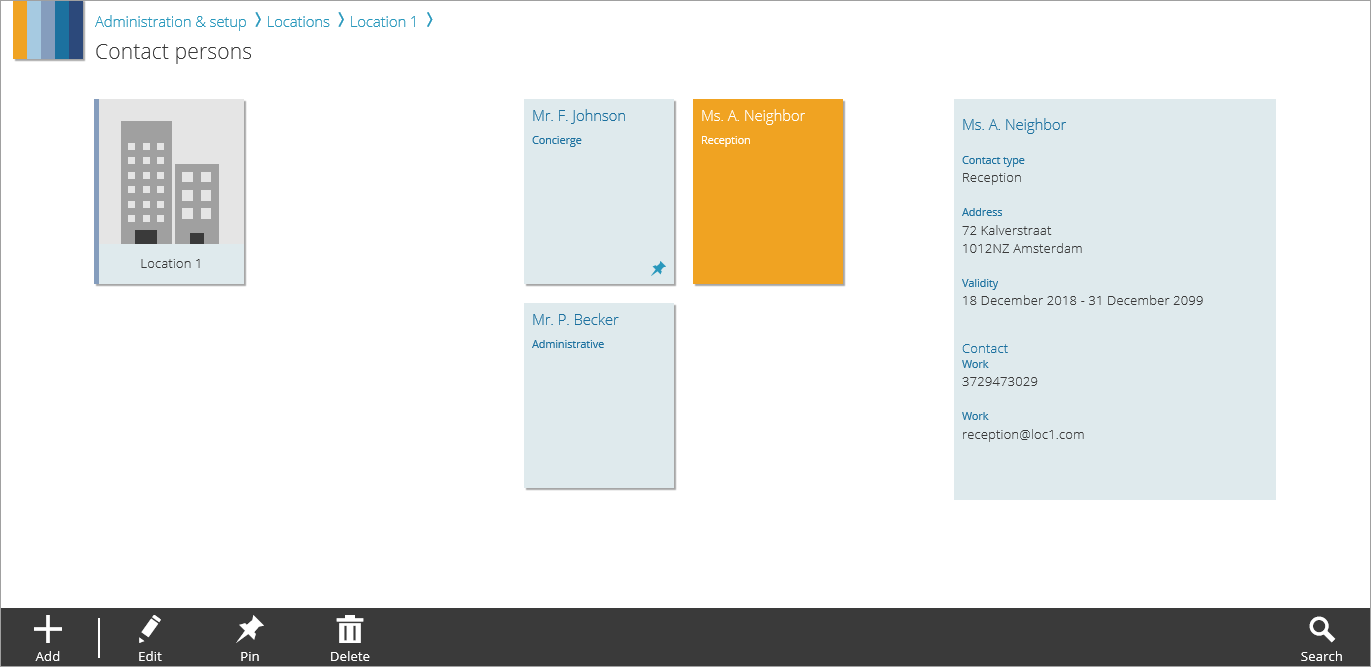
The contact persons overview contains all contact persons that were imported or created in Serviceware Resources for the selected client or location. Each contact person is displayed on his own tile. After selecting a tile, the details of the contact person it represents are displayed in the information panel on the right side of the page. Contact persons whose validity period has expired are not shown by default. With the search function, these ‘old’ contact persons can be made visible.
Required
- User right 12: ‘Allow viewing of location information’, for location contact persons
User right 6: ‘Allow viewing of client information’, for client contact persons
Actions
Depending on user rights, a number of actions are available on the action bar of the contact persons overview.
- Add: Add a new contact person.
- Edit: Edit information of the selected contact person.
- Pin: Pin the selected contact person so that it will be visible on the dashboard of the client or location.
- Delete: Delete the selected contact person.
- Search: Change the search criteria that are applied to the contact persons overview.

Search function
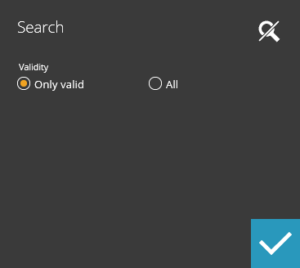 By default, only the current and future valid contact persons are displayed on the contact persons overview. Click on ‘Search‘ at the bottom right to open the search panel. Here you can set the validity filter to ‘all’ to make the expired contact persons visible.