

Version 7.4 and higher
Sometimes you might want to edit a session after it was created. For example, the session needs to be made shorter, the location needs to be changed, or a service needs to be added.
On the sessions overview, click the ‘Edit’ button to edit a session. If multiple sessions are selected, multiple sessions can be edited at once.
Required
User right 21.1: ‘Edit session information’
Edit one session
Select one session in the sessions overview and click ‘Edit’ to open the ‘Edit session’ page. On this page, the details of the session can be adjusted, extended or removed. The page layout is very similar to the ‘Add session’ page, with a few small differences. These differences will be described below.
Differences compared to the ‘Add session’ page
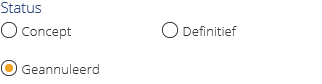 Status: The option ‘Draft’ is not available when the session already has appointments. Furthermore, an extra option is added, the status ‘Canceled’. A canceled session cannot be used to plan appointments on. It is possible to set a session to ‘Canceled’ if it already has appointments, provided that the appointments are not yet registered. However, this is highly inadvisable, because the appointments would become invalid if the session is canceled.
- Date: When the session is edited, it is not possible to change the recurrence. After all, it concerns an individual session, which is not part of a chain (see Add session). Furthermore, it is not possible to change the date when there are one or more appointments planned on the session.
Attention!
It is possible that new services are added in the ‘Masterdata’ module after a session was created. These new services are not automatically added to the existing sessions, even if the new services are grouped under a service category that was selected in the session setup. That is why newly created services need to be added manually to already existing sessions. This can be done for each session individually, or for multiple sessions at once. For bulk editing sessions, please refer to the section below.
Editing multiple sessions at once
In addition to editing one session, it is also possible to edit multiple sessions at once. For example, editing multiple sessions at once can be used to change sessions that originated from one recurrence. As explained before, if a session with a recurrence is created, the resulting sessions will be saved as separate items. If something in the sessions needs to be changed afterwards (for example, a service needs to be added), this can be done on the ‘Edit sessions’ page.
Use the ‘Search’ button on the sessions overview to create a precise selection of sessions that need editing. Select the required sessions and click ‘Edit’ to open the ‘Edit sessions’ page.
On this page, some input fields look different compared to the page for editing one single session. In some input fields (for example code and name), the values of the selected sessions are shown, provided that they are all the same. If the values are not the same for all selected sessions, the fields are empty or ‘Mixed values’ is shown in the input field. If these fields are not edited, the values remain unchanged.
Attention!
If new values are entered, the old (different) values will be overwritten for all selected sessions. This also applies when a field is emptied. In that case, all the (different) values of the selected sessions will be deleted. Please take this into consideration when selecting the sessions on the sessions overview.
Attention!
As with adding and editing a single session, several checks are performed. Note that most checks are only performed after the changes are saved. Please view the validation status of the edited sessions in the sessions overview after they are saved.
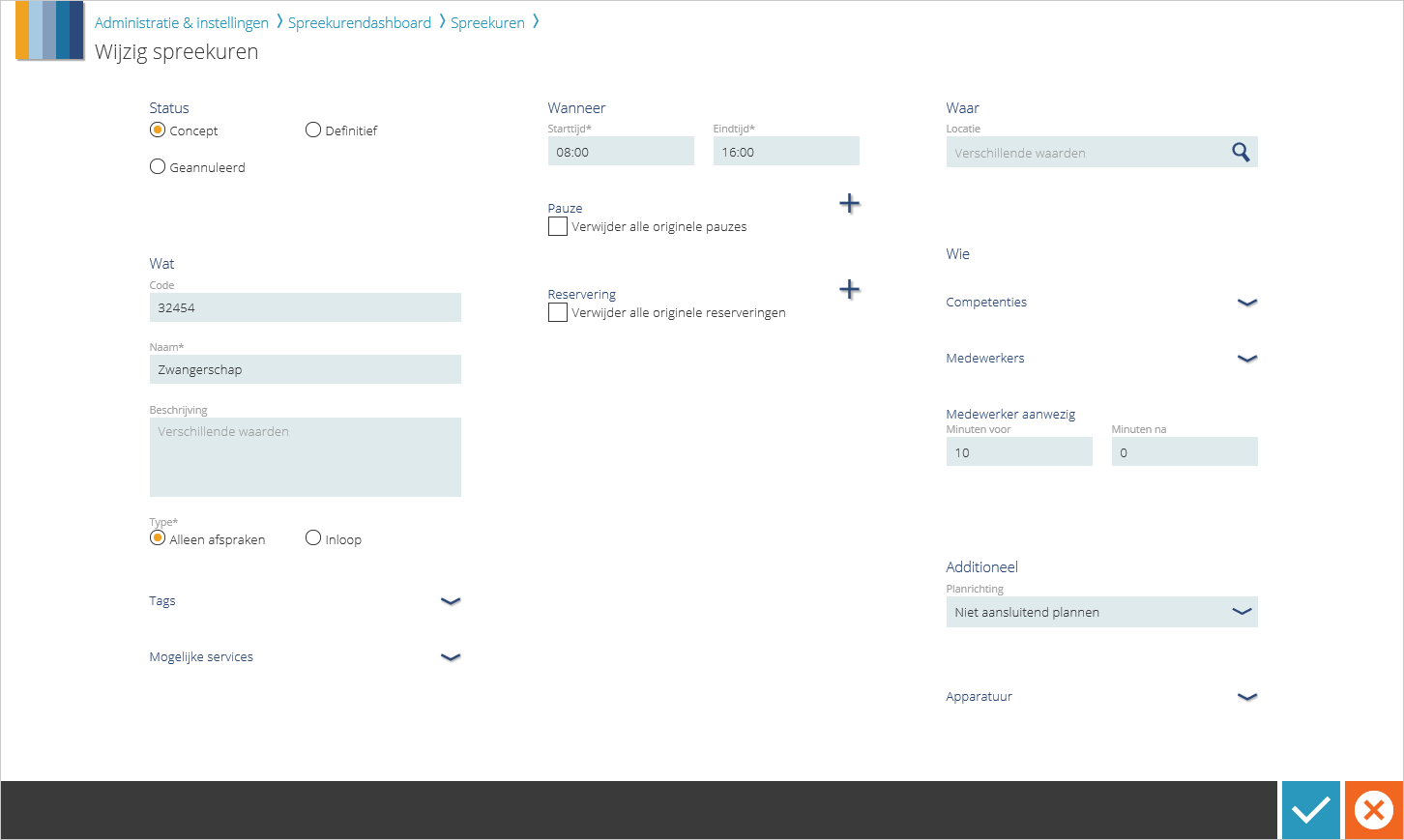
The following paragraphs describe for each section of the ‘Edit sessions’ page how the input fields behave.
1. Status
If all selected sessions have the same status, that status will be selected here. If the statuses of the selected sessions are different, none of the options is selected here. If you select one of the statuses, all selected sessions will get this status after save.
If at least one of the selected sessions has appointments, the option ‘Draft’ is not available anymore. The option ‘Canceled’ is also not available if there are registered appointments on one of the sessions.
2. What
- Code, name and description: The input fields for code and name are the same as on the page for editing a single session. The only difference is that ‘Mixed values’ is shown in the fields if the values are not the same for all selected sessions.
- Type: If the selected sessions all have the same type, this type option is selected here. If you select an(other) type, all sessions will get this type after save.
- Tags: The tags that were already selected for the sessions are not visible here. By default, this section is collapsed. If you click on the blue arrow in the title two more input fields will be shown. Type a few characters in the fields and select one or more tags from the suggestion list to add or remove them from all selected sessions.
- Possible services: This section can also be expanded by clicking on the arrow in the title. Here also, the already selected values will not be shown. But it is possible to remove services from or add services to all selected sessions. First, define which services need to be removed. By default, this is set to ‘None or specific ones’. If desired, type a few characters in the search field and select one or more services from the suggestion list to have them removed from all selected sessions. It is also possible to choose ‘All originally selected’, which will remove all services from the selected sessions. This is a useful option if you want to replace all services for the selected sessions.
It is also possible to add services with the second search field. Type a few characters in the field and select one or more services from the suggestion list.
The list will only show services that are valid on the current day or in the future, and only if they have an active service category.
3. When
- Date and time: The date is not shown while editing multiple sessions. But it is possible to adjust the start time and end time of the selected sessions. If these times are the same for all selected sessions, they will be shown in the fields. If the times differ per session, the input fields will be empty.
- Pause and reservation: The existing pause and reservation times of the selected sessions are not visible here, even if they are the same for all selected sessions. Click on the plus buttons to add new pauses/reservations. Select the option ‘Delete all original pauses/reservations’ to remove all old pauses or reservations to make sure all sessions have the same pauses/reservations after save.
4. Where
- Location: You can fill in a location in the same way as on the ‘Add session’ and ‘Edit session’ pages. If the sessions all have different locations, the text ‘Mixed values’ will be shown in the input field. Here also applies: If the locations were different for the selected sessions and a new location is selected, all old locations will be replaced.
5. Who
- Competences and employees: As with the tags and services, the competences and employees that were already selected for the sessions are not shown. Editing a competence or employee is done in the same way as with services (see above).
For the employees field a filter is applied to the search field; just like on the ‘Add session’ and ‘Edit session’ pages, only competent and available employees will be searched by default. Deselect the checkboxes to search without filters. - Employee present: If the values of the selected sessions are the same, they will be shown in the fields here. If that is not the case, the fields will be empty.
6. Additional
- Plan direction: The input field for plan direction is the same as on the page for editing a single session. The only difference is that ‘Mixed values’ will be shown in the field if the plan direction is not the same for all selected sessions.
- Devices: As with tags, services, competences and employees, the devices that were already selected are not shown here. Editing the devices for multiple sessions is done in the same way as with services, competences and employees.