

Version 7.4 and higher
The page ‘Sessions’ shows an overview of all sessions that are available in the system. It provides an overview of the already created sessions and their status. Can appointments be planned on the session? Are there already appointments planned? Is there something that requires attention, for example a too high occupancy rate or an error?
Required
- User right 21: ‘View session information’
Actions
Several actions are available on the action bar on the sessions overview, depending on user rights. The buttons appear when one or more sessions are selected in the table.
- Add: Add new session.
- Edit: Edit existing session.
- Open: View information of an existing session without being able to edit it.
- Plan: Open the session planning board. On this page the actual appointment planning takes place. Note that this button only appears for sessions that have status ‘Final’.
- Copy: Copy existing session.
- Search: Adjust the search filter which is applied to the sessions overview.

Overview table
The overview table shows all sessions in the system, each session on a new row. The most important details of each session are displayed: code, name, possible tags, type, day of the week, date, time and location. Furthermore, the number of planned and required employee competences are shown (left and right of the slash, respectively). This number is not about ‘unique’ competences, but about the total number. For example, if a session requires 2x the competence ‘Radiologist’ and there are no employees yet, this is displayed as 0/2. As soon as one employee with the said competence is planned on the session, this is shown as 1/2. If there are two employees with this competence planned, it is shown as 2/2.

The column next to competences shows the occupancy rate of the session (as a percentage). Occupancy rate = [Total duration of all appointments added up] / [Duration of the session, excluding pauses]. If an appointment has appointments, an appointment icon is shown:
The last column shows the status of the session:
 |
Final |
 |
Draft |
 |
Canceled |
By default, the sessions are shown in chronological order. Click in the table on one of the column titles to sort the content of the column in a different way, for example on location name or status.
Representation of validation statuses
As described in Session error messages and validation status, each session has a so-called validation status, which indicates whether there are problems with the session. If there are problems, they are shown with color in the sessions overview:
- Invalid session. The whole row, except for the columns on the right, are shown in red text.
- Session with invalid appointment. The appointment icon is red instead of gray.
- Warning concerning the device(s). The name of the session is shown in orange.
- Warning concerning the employee(s). The name of the session and the text in the competence column are shown in orange.
- Warning concerning the location. The name of the session and the name of the location are shown in orange.

Average occupancy rate
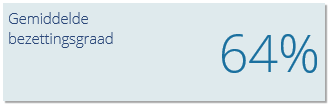
At the top left of the page the average occupancy rate of the sessions is displayed. It concerns the average occupancy rate of the sessions that are shown in the table, i.e. the average occupancy rate of the sessions that meet the filter that is defined in the search panel.
The average occupancy rate can be used to help make decisions about session management. For example, you can use the search panel to only show sessions that have a certain service and a certain location and which are planned in the next two weeks. If the occupancy rate is a bit low, you can decide to cancel some of these sessions. If the occupancy rate is a bit too high, you can decide to add a few extra sessions with the respective service and location.
Access time
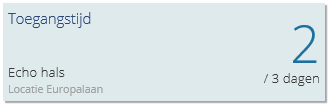
If the search filter is set to a certain service and a certain location, the access time of the said service-location-combination will be shown at the top right of the sessions overview.
Just like with the average occupancy rate, the access time can be used to help make decisions about session management. If the access time is long, or when the max. allowed access time is exceeded, this can be a reason to add some extra sessions for this specific service-location-combination. Please refer to Access time for more details.
Search functionality
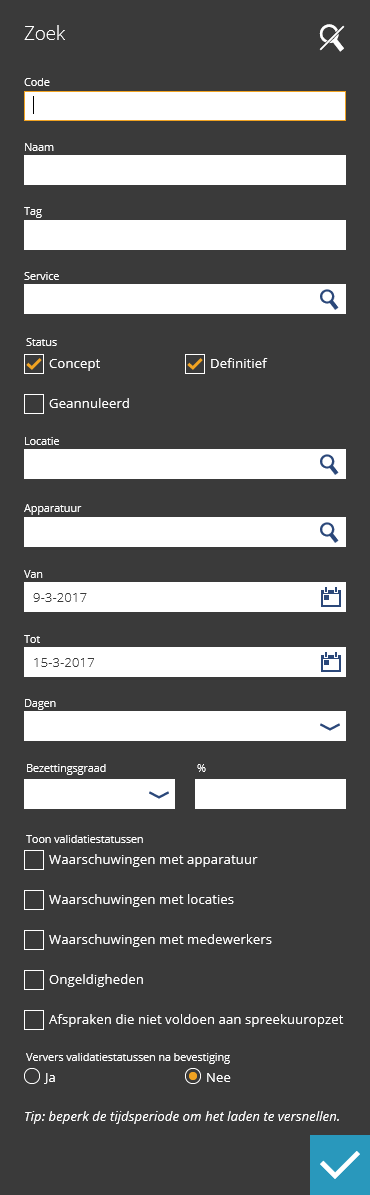
As explained before, different selections of sessions can be selected on the Sessions dashboard page: Each tile on the sessions dashboard will lead to the sessions overview in a different filtered state. Once you are on the ‘Sessions’ page, the filter can be further adjusted with the search functionality, in order to perform a more advanced search. It is possible to search for session properties and for validation status.
Click on ‘Search’ in the bottom right corner to open the search panel.
Search for session properties
It is possible to search for several session properties, for example code or name. Fill in one or multiple fields to adjust the search filter. It is also possible to leave a field empty, the respective property will then not be taken into account while performing the search.
Tip
The Tag field can be used to search for multiple tags at the same time. Separate them by “;”. For example: “Meeting;Amsterdam”. Please note that the entered value needs to completely match the tag which is searched for. It does not work if only a part of the word is entered.
A session is found if it matches all the entered properties.
Search for validation status
It is also possible to search for sessions with a certain validation status. A session is found if it has at least one of the selected validation statuses. If none of the validation statuses is selected, all sessions are shown, regardless what their validation status is.
As described in Session error messages and validation status, the validation status of all sessions is automatically updated once a day. However, it might be useful to refresh the validation status of some sessions earlier, for example to see if the adjustments that were made to a certain session cause a problem for other sessions. That is why the search panel includes a possibility to refresh the validation statuses of the sessions. By default, this option is set to ‘No’. Choose ‘Yes’ to trigger the validation process after confirmation.
Attention!
If the option is set to ‘Yes’, the system first searches all sessions that match the entered properties (for example: all sessions of today on Location X). Subsequently, the validation status of all the found sessions is updated. The validation status of the sessions that do not match the filter are not updated. If the filter is set too ‘wide’ (for example: all sessions from January until July), the system will show a message that there are too many sessions to validate at once (the maximum number is 100). In that case, refine the filter and try again.