

It is important that all data of a session are complete and in order, which is why all details of the sessions are verified by the system. In other words: a number of checks is performed. The result of the checks determines the ‘validation status’ of the session. If, for example, a session is planned on a location without a valid address, the session will get status ‘Warning with location’. A session with a bad validation status needs to be edited, because the problem can affect the planning of appointments.
There are five different validation statuses possible:
- Invalid session
- Session with invalid appointment
- Warning concerning the devices
- Warning concerning the employee(s)
- Warning concerning the location
View validation status and resolve errors
The validation statuses of sessions are visible on the sessions dashboard, on the sessions overview and on the session planning board. In order to view the individual error messages and resolve them, open the ‘Edit session’ page of the respective session. Please also view the explanation below.
Update validation status
The sessions are checked for errors on certain fixed moments in time. If all the checks are performed the new validation status is saved for each session. The validation status is updated at the following moments:
- Automatically once a night for all sessions.
- Automatically when a new/edited session is saved.
- Manually on the page ‘Sessions’. In the search panel, set the option ‘Refresh validation statuses on confirmation’ to ‘Yes’ and then click the confirmation button. This option is useful when you want to see the most recent status of specific sessions.
Attention!
If the details of a certain session are edited, this does not influence the validation status of other sessions. After all, the other sessions do not ‘know’ that the first session is edited. That is why their validation status needs to be refreshed separately in order to reflect the adjusted situation. For example: There are two sessions planned on the same day on the same location; they both have the validation status ‘Location warning’. If the location of the first session is changed to another, available location, its error message will disappear. However, the validation status of the second session will not automatically be updated. The error message for the second session will remain visible until the validation status is updated, for example by opening and then saving the session again.
Possible validation statuses
Invalid session
A session becomes invalid if at least one of the following things turns out to be true during the performed checks:
- The service is not valid during the session.
- The employee is not valid during the session.
- The location is not valid during the session.
- The address is not valid during the session.
- The device is not valid during the session.
- The times of the service fall outside of the times of the session.
- The times of the pause and/or reservation fall outside of the times of the session.
- The session has status ‘Final’ but no location is selected.
An invalid session misses required information, which is why it is blocked for planning. It is not possible to plan appointments on an invalid session and appointments that already existed on the session become invalid.
Session with invalid appointment
A session gets status ‘Invalid appointments’ if at least one of the following applies:
- The planned service cannot be delivered on the session.
- The times of the appointment fall outside the times of the session.
- The times of the appointment fall outside of the allowed times of the planned service.
- There are appointments planned on the session while the session’s status is not ‘Final’.
Attention!
Only problems related to the setup of the session are taken into account here. These problems can be resolved by editing the details of the sessions. However, there are other reasons why an appointment can become invalid, for example if the employee who carries out the appointment is not allowed for the respective client, or when the client does not have the right age for the planned service. This does not have anything to do with the setup of the session, which is why this check is not shown on the session management pages. Please note that because of this it might be possible that there are more invalid appointments than the number which is shown on the sessions dashboard. These invalidities will become visible if the respective appointments are shown on the ‘Session planning’ page.
Please refer to Session planning board for an explanation about how to view appointments on a session and Manually plan appointment on a session for an explanation of the error messages and how to edit an appointment.
Warnings
Next to error messages, there can be warnings. Warnings do not block a session or the (manual) planning of an appointment, but they indicate that certain details are not correct or incomplete.
Attention!
A session with warnings can be saved, but the plan engine will never plan appointments on a session which has warnings concerning the devices or the location. Therefore, it is important to regularly check if there are any warnings that need to be resolved.
Warnings concerning the device(s)
A session gets the status ‘Warning concerning device’ if the following applies:
- The device is not available on the selected location.
Warnings concerning the employee(s)
A session gets the status ‘Warning concerning employee’ if at least one of the following applies:
- The competence is not active in the system.
- Not all required competences are covered by the employees who are planned on the session.
- There is an employee planned on the session who does not have any of the required competences.
- The employee is not completely available.
Warnings concerning the location
A session gets the status ‘Warning concerning location’ if at least one of the following applies:
- The location is not completely available.
- The location is not completely open during the session.
- The service cannot be delivered on the location.
Error messages on the page ‘Add session’ / ‘Edit session’
When a session is created or edited, conflicts may arise. If the system detects a problem it will give an error message, the problematic value will be marked red. Click in a red outlined field to read the error message.
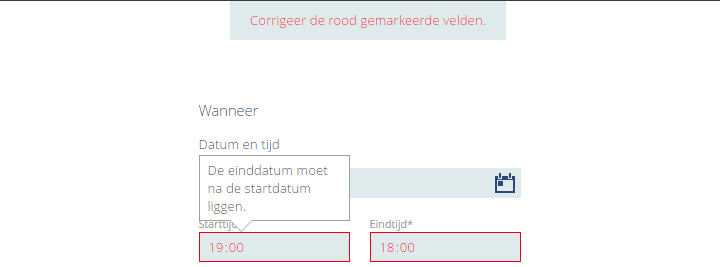
Some messages do not have an extra explanation. For these errors an explanation is given below.
If the confirm button is pressed while a (required) field is not (correctly) filled in, a message will be shown in the top of the screen saying that the incorrectly filled in fields need to be corrected.
Messages concerning the service
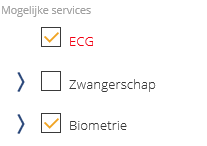 It is possible that services are shown red in the list of possible services. Several things could be the cause:
- Service is invalid. Services need to be valid during a session in order to be able to use them. By default, only valid services are shown in the list, the invalid ones are filtered out. However, if a service is selected it will always remain visible. It might turn invalid later, for example if the date of the session is changed. The start date of the session is used as a reference date for determining if the service is valid or not. If the service is invalid, it will be shown red and the session cannot be saved. Choose another date on which the service is valid, edit the validity of the service in the ‘Masterdata’ module, or remove the invalid service from the session (deselect it in the list).
- Service cannot be delivered on the location. For each location in the ‘Locations’ module is defined which services can be delivered. When a session is created, a check is performed to make sure the selected services can be delivered on the selected location. If a location is selected first, the list of services is filtered; only services that can be delivered on the selected location are shown. This way it is not possible to make a wrong combination. However, if a service is selected before the location is selected, all locations can be selected. Locations on which the selected services can be delivered are shown with a little star icon, in order to make the selection process easier. If after all a location is selected which is not a good match with the selected services, the problematic service will become red. The session can be saved, but it will get the validation status ‘Warning concerning the location’. In order to resolve the error, remove the problematic service from the session, or add the service to the list of ‘Possible services’ for the respective location in the ‘Locations’ module.
Messages concerning ‘Details per service’
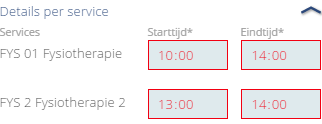 The times of ‘Details per service’ can have a red outline. This means that the entered times of the service fall outside of the times of the session. The session cannot be saved with this error.
Messages concerning pauses and reservations
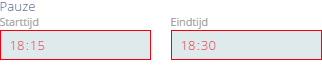 If the times of a pause or reserveration have a red outline, this means that the entered times fall outside of the times of the session. The session cannot be saved with this error.
Messages concerning the location
 If the location input field is marked, this can mean several things:
- Location is invalid. Both the selected location itself as its parent location(s) should be valid during the session. By default, only valid locations can be selected. The start date of the session is used as a reference date for determining if the location is valid or not. The location could become invalid, for example if the location is selected first and the date of the session is changed afterwards. If the location becomes invalid, the location field is shown red and the session cannot be saved. Choose another date on which the location is valid, adjust the validity of the location in the ‘Locations’ module, or select a different location to resolve the error.
- Address of the location is not valid. The address of the location needs to be valid as well. In order to resolve the error, choose another date on which the address is valid, adjust the validity of the address in the ‘Locations’ module or select another location.
- Location is not completely available. The location needs to be available during the whole session. That means that no other sessions or appointments can be planned on the location. If the location is not available during the (whole) session, the location input field is shown red. The session can be saved, but it will get the validation status ‘Warning concerning the location’. If you want to see which other sessions use the same location, use the search functionality in the sessions overview.
Attention!
When a session is created on a location which is already occupied, this will not immediately influence the validation status of the already existing sessions that use the same location. The existing sessions will not show a ‘Warning concerning location’ in the sessions overview. Refresh the validation statuses manually to see which locations use the same location.
- Location is not open during the whole session. The selected location needs to be open during the whole session. If this is not the case, the location input field is shown red. The session can be saved, but it will get validation status ‘Warning concerning the location’. Give the location an opening time in the ‘Locations’ module to resolve the error, or select a different location for the session.
Messages concerning the employees
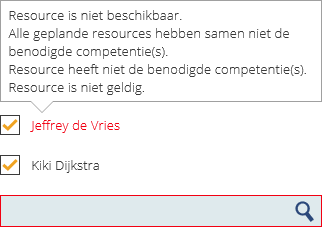 If there are any employees selected, they could be shown red. This can mean several things:
- The selected employee contract is not completely available. He/she has other appointments or sessions at the same time of this session.
- At least one of the required competences is missing amongst the selected employee contracts. An employee who does have the missing competences needs to be added to the session.
- The selected employee contract does not have any of the required competences. If the selected employee contract does not have any of the required competences, he/she is not suitable for carrying out the session.
- The selected employee contract is not valid.
These error messages are shown when you click on a red employee name. Employee contracts are called ‘resources’ in the messages.
The session cannot be saved if the first error exists. The session can be saved with the other three messages, but it will get validation status ‘Warning concerning the employee’.