

Version 7.4 and higher
A scenario defines which event should trigger the generation of a message. For each trigger a separate scenario should be defined. If desired, scenarios can be made more specific by adding one or more conditions.
Defining a scenario
Click on ‘Add’ on the scenarios overview to open the page ‘Add scenario’. The page is divided into 2 sections. The left section is for giving the scenario a name and for defining the trigger. The right section is for defining conditions.
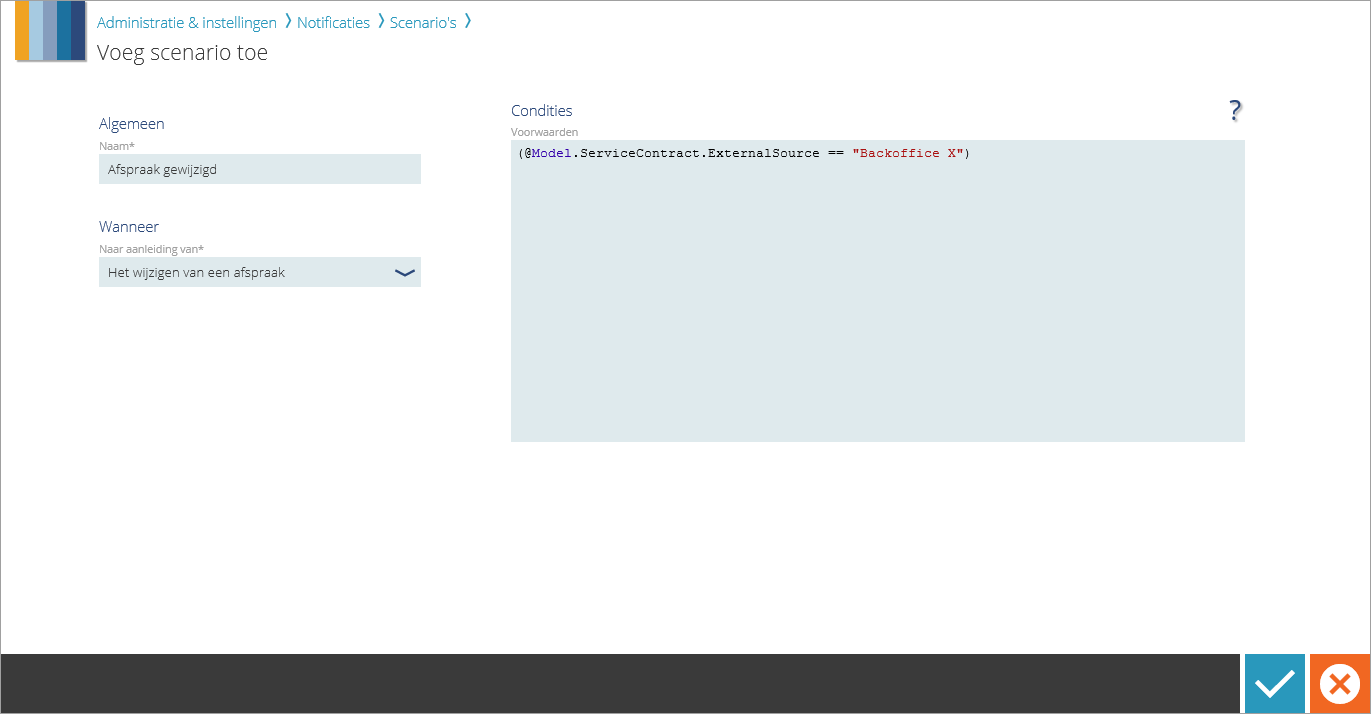
Trigger
Each scenario is only valid for one specific trigger. The options are:
- Creating an appointment: A message will be generated when a new appointment is planned on a session. It does not matter whether the appointment was created manually or planned with the appointment generator. You can choose this trigger if you want to send appointment confirmations to the clients.
- Editing an appointment: A message will be generated when an appointment that exists on a session is edited. Here also applies: it does not matter whether the changes are done manually or by means of the plan engine. You can choose this trigger if you want to inform clients about changes to or cancelation of their appointment.
- Deleting an appointment: A message will be generated when an appointment that exists on a session is deleted. This trigger can be used to send a confirmation to clients who canceled their appointment.
- Appointment reminder: A message will be generated when a new appointment is planned on a session. This message will only be sent right before the appointment takes place. This trigger can be chosen to remind clients of their appointment that will soon take place.
- Order notification Version 7.7: A message will be generated when an order for a client is valid within X time from now. This means that the message is not generated at the same time as when the order is created, but later, for example 3 weeks before its start date. You can choose this trigger if you want to invite clients for making an appointment or invite them for visiting a walk-in session. Setting 42 defines how many days (X) in advance the message needs to be generated. This can be different for each service.
- A reminder of an order notification Version 7.7: A message will be generated Y days after the original order notification was sent. You can choose this trigger for clients who did not respond to the first order notification and you want to request them again to contact the organization for planning an appointment. Setting 42 defines how many days (Y) after the original message a new message should be generated. This can be different for each service.
Attention!
For now, appointment notifications only work for appointments on sessions, not yet for appointments on the day, week and event planning boards.
Attention!
The triggers that were discussed above will cause messages to be generated. The actual sending moment depends among other things on the values in setting 21 for appointment messages and setting 42 for order messages.
Conditions
It is possible to add one or multiple conditions to a scenario. Conditions function as extra requirements that need to be met before the scenario is regarded as valid. If desired, multiple conditions can be combined within a scenario. When no conditions are defined, the scenario is always valid when the selected trigger event takes place.
Conditions for scenarios are identical to conditions for templates, only there are no linked actions here. The available elements are the same as the elements that can be used for templates. A condition consists of:
- An element or property
- An operator, like == < > != && || ()
- A value or property which needs to apply
Defining conditions with the ‘conditions tool’ Version 7.8
Under construction…
Defining conditions with syntax Version 7.4 – 7.7
A condition can be written with the Razor html syntax, and has the format: @(element operator value or property)
When a condition is entered, and you click outside of the ‘Rules’ field, the entered text is checked to make sure the used elements exist and the syntax is correct.
Examples of conditions in scenarios
Scenario is only valid for appointments with a specific status (“Created”, “Assigned”, “Arrived”, “InProgress”, “Completed” or “Failed”):
@Model.Appointment.Status == “Arrived”
Scenario is only valid for appointments with status “Failed” and a specific failed reason:
@Model.Appointment.Status == “Failed” && @Model.Appointment.FailedReason == “Cancelled”
Scenario is only valid for appointments which are based on an order that has a contractor:
@Model.ServiceSchedule.ContractorName != “NULL”
Scenario is only valid for appointments that take place at a specific location:
@Model.Location.Name == “Main building”
Scenario is only valid for appointments of which the underlying order comes from “Backoffice X” or “Backoffice Y”:
@Model.ServiceContract.ExternalSource == “Backoffice X” || @Model.ServiceContract.ExternalSource == “Backoffice Y”
Scenario is only valid for orders which have 3 planned appointments Version 7.7:
@Model.Order.AppointmentCount == 3
Scenario is only valid for orders which have 2 appointments planned with failed reason “No show” Version 7.7:
@Model.Order.AppointmentCountByFailedReason[“No show”] == 2
Attention!
Unfortunately, it is not possible to copy the condition from above to paste it in the conditions field. Special characters like ʹ/ʺ@ need to be typed manually in the application. Element names can be copied and pasted though.