

Version 7.4 and higher
Scenarios are used to define the situations in which a message should be sent. First, the event that causes the sending of a message is defined (a.k.a. the ‘trigger’). Possible triggers are: creating, editing, canceling or deleting appointment, an appointment that is going to take place soon, or an order that soon needs to be planned or carried out.
Furthermore, a scenario can contain conditions. Conditions function as extra requirements which the appointment or order needs to meet before the scenario is regarded as valid and a message will be generated. Scenarios can be created simply within Serviceware.
Managing scenarios
Scenarios can be managed from the scenarios overview, which is part of the Notifications section.
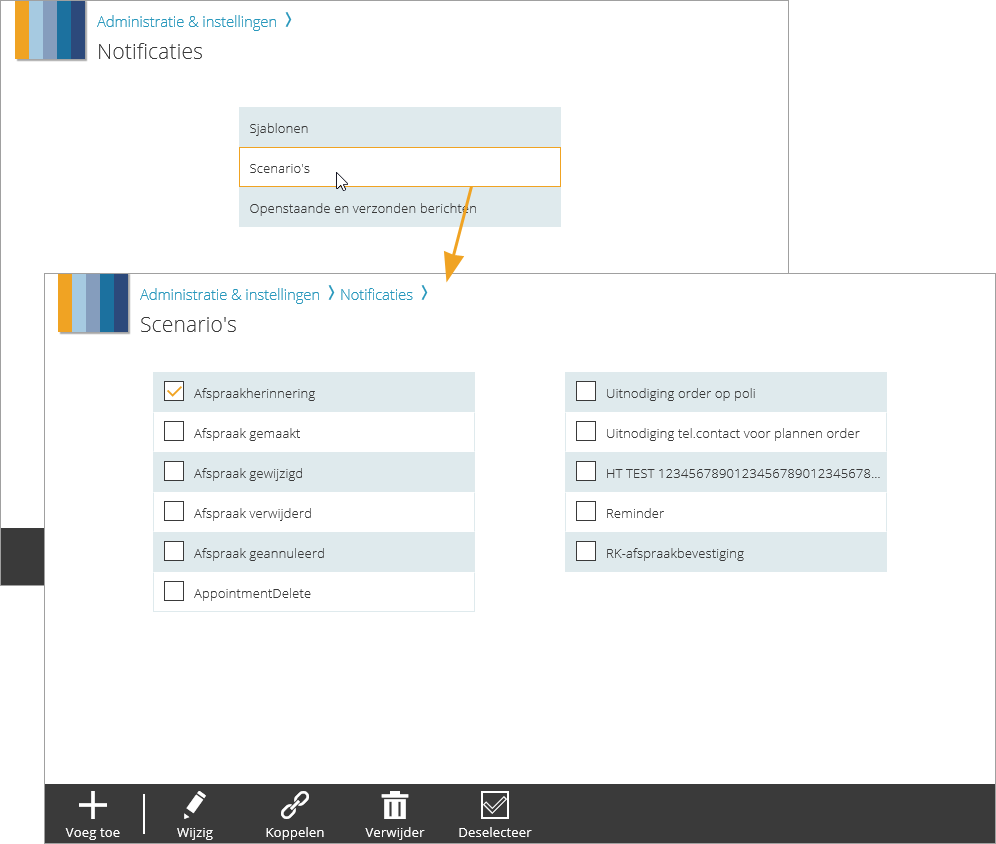
Several buttons are available on the action bar, depending on which items are selected.
Adding a scenario
Click on ‘Add’ to define a new scenario.
Editing a scenario
Click on ‘Edit’ to edit an existing scenario.
Attention!
The scenario will be edited for all services.
Linking a scenario to a service
Click on ‘Link’ to link the selected scenario to a specific template and one or more services.
Deleting scenarios
Click on ‘Delete’ to delete one or multiple scenarios. A pop-up window will appear to ask for confirmation. Click on the  button to delete the selected scenarios from the whole application – also from the services where the selected scenario was active (i.e. where templates were linked). No messages will be generated anymore based on the deleted scenario.
Deselecting scenarios
When multiple scenarios are selected, they can all be deselected at once by clicking the ‘Deselect all’ action.