Appointment notifications: version 7.4 and higher Order notifications: version 7.7 and higher
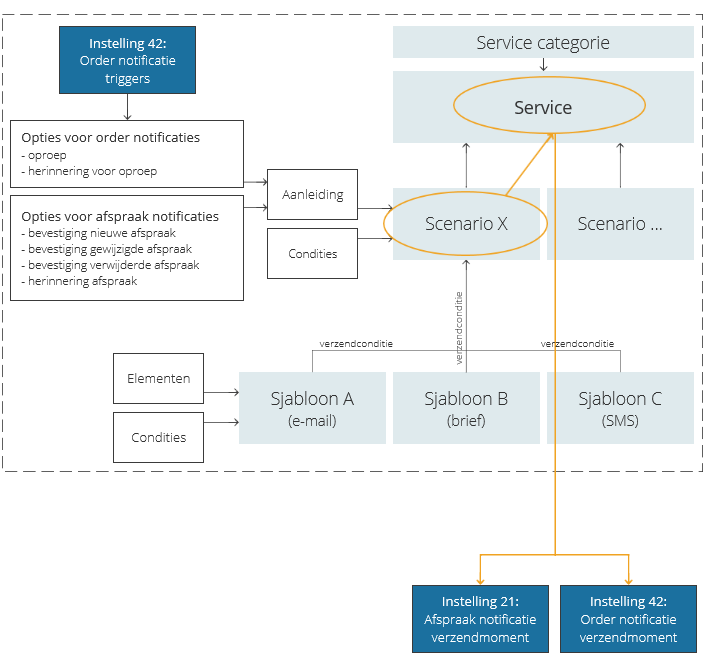
All notification messages are generated based on templates, which are filled with the specific properties (‘elements’) of the appointment or order. Conditions can make the resulting messages more ‘beautiful’, for example by adjusting the client’s title (Mr./Mrs.) based on the gender of the client.
Scenarios define the situations in which messages should be generated. A scenario consists of a ‘trigger’ event that needs to take place and certain conditions that the appointment should meet. The triggers for appointment messages are predefined in the system. However, the triggers for order notifications need to be defined in setting 42.
Condition are extra requirements that a scenario needs to meet to be valid. For example, conditions can be used to create two scenarios based on one trigger: one scenario for appointments that are ‘failed’ because the client did not show up, and one for appointments that were canceled by the client before the appointment took place. For each scenario a different template can be used, so that in each situation a different message is sent.
Link a specific template per scenario and message type (email/text message/letter) to a service and give them a sending condition to define which messages can be generated when a scenario is valid. An example of a sending condition is: a specific message type is always generated when the scenario is valid, or a letter is only sent when an email cannot be sent.
When a trigger event takes place and the scenario is valid for a certain service, (a) message(s) will be generated. It depends on the settings for the sending moment for appointment messages or the sending moment for order notifications when the messages will be sent.
Notifications section
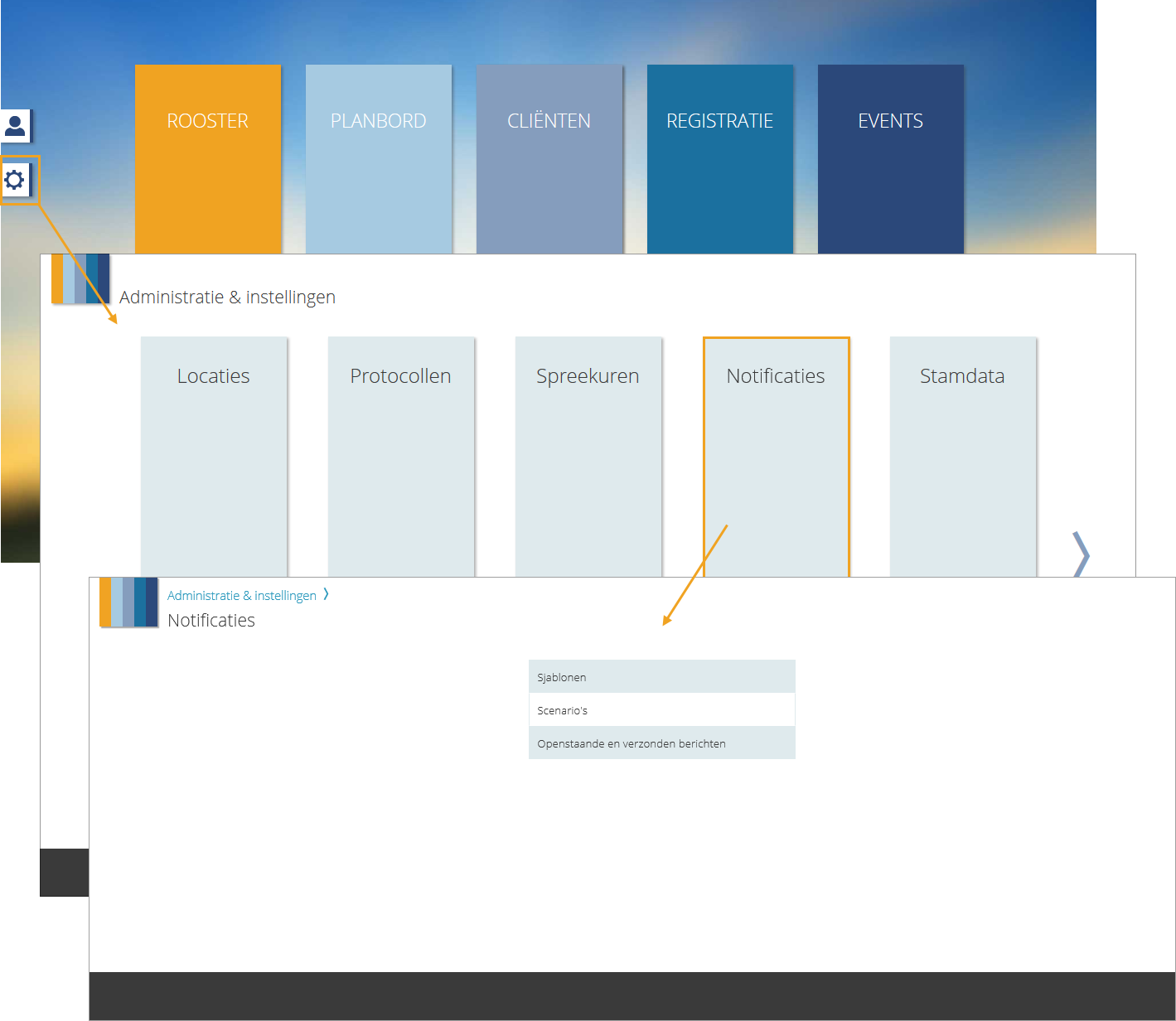
Click on the story page on the gear icon to open the page ‘Administration & setup’. If you have the right settings and user rights, a Notifications tile will be visible on the page. Click on the tile to open the notifications section. From there you can navigate to the subsections ‘Templates’ and ‘Scenarios’. Linking services can be done via scenarios or via templates, or directly from the service (category) page in the Masterdata section.
Required
- User right 7.15: ‘Appointment communication’