Version 7.4 and higher
When a session is defined and has the final status, client appointments can be planned on it. This can be done in two different ways: manually on the session planning board, or using the session appointment generator. After specifying what service to plan and entering relevant client preferences, this wizard (also called ‘PSE’) suggests available time slots on suitable sessions at locations near to the client’s address. The clients are planned one after the other on these predefined sessions.
If desired, several employees can be planned on a session – possibly with different competences. For example, a joint session of an experienced employee and a junior trainee. Every client who visits this session will be seen simultaneously by both employees. So: 1 client, at 1 location, possibly with multiple employees.
After creating (or changing) an appointment on a session, a message can be sent to the client for confirmation.
A session is available as a location appointment for every employee involved, in the calendar of his mobile app. For the time being, it is only possible to view and register individual client appointments on a session from the session planning board in the web application and not yet from the mobile app.
A session planning board can be created in the planning board set-up section of the classic admin module.
Opening a session planning board
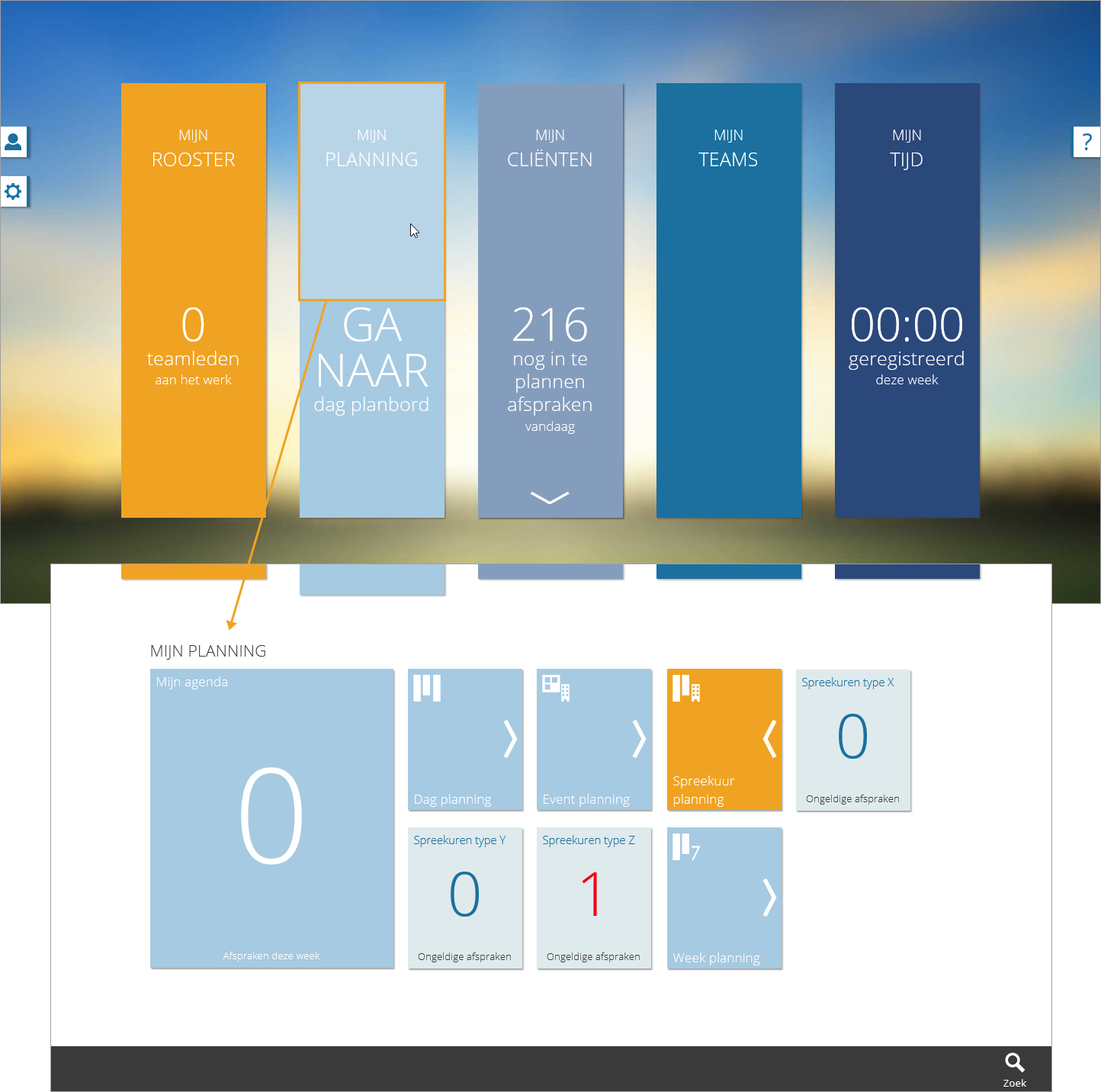
Via the second tile on the storypage, the ‘My Planning‘ page opens. Click on  on the ‘session planning’ tile to see all the session planning boards for which you are authorized. Click on one of these tiles to open the corresponding planning board.
Required
- NextGen setting 19: ‘Enable session functionalities’ is set to ‘Yes’
- Classic setting C1002: ‘Enable session functionalities’ is set to ‘Yes’
- User right 22: ‘View session planning’, with at least 1 session planning board in your scope